public static int DownloadFile(String remoteFilename,
                                String localFilename,
                                String securityProtocolType)
{
    //Make sure to use the following namespaces:
    //using System.Net;
    //using System.IO;

    // Function will return the number of bytes processed
    // to the caller. Initialize to 0 here.
    int bytesProcessed = 0;

    // Assign values to these objects here so that they can
    // be referenced in the finally block
    Stream remoteStream = null;
    Stream localStream = null;
    WebResponse response = null;

        if (securityProtocolType == "Tls12") //Added if statement since some downloads will fail with Tls12 selected
        { ServicePointManager.SecurityProtocol = (SecurityProtocolType)3072; } // 3072 = TLS 1.2 Security Protocol

    // Use a try/catch/finally block as both the WebRequest and Stream
    // classes throw exceptions upon error
    try
    {
        // Create a request for the specified remote file name
        WebRequest request = WebRequest.Create(remoteFilename);
        if (request != null)
        {
            // Send the request to the server and retrieve the
            // WebResponse object
            response = request.GetResponse();
            if (response != null)
            {
                // Once the WebResponse object has been retrieved,
                // get the stream object associated with the response's data
                remoteStream = response.GetResponseStream();

                // Create the local file
                localStream = File.Create(localFilename);

                // Allocate a 1k buffer
                byte[] buffer = new byte[1024];
                int bytesRead;

                // Simple do/while loop to read from stream until
                // no bytes are returned
                do
                {
                    // Read data (up to 1k) from the stream
                    bytesRead = remoteStream.Read(buffer, 0, buffer.Length);

                    // Write the data to the local file
                    localStream.Write(buffer, 0, bytesRead);

                    // Increment total bytes processed
                    bytesProcessed += bytesRead;
                } while (bytesRead > 0);
            }
        }
    }
    catch (Exception e)
    {
        Console.WriteLine(e.Message);
    }
    finally
    {
        // Close the response and streams objects here
        // to make sure they're closed even if an exception
        // is thrown at some point
        if (response != null) response.Close();
        if (remoteStream != null) remoteStream.Close();
        if (localStream != null) localStream.Close();
    }

    // Return total bytes processed to caller.
    return bytesProcessed;
}

/// <summary>
/// This method is called when this script task executes in the control flow.
/// Before returning from this method, set the value of Dts.TaskResult to indicate success or failure.
/// To open Help, press F1.
/// </summary>
public void Main()
{
    int read110 = DownloadFile(Dts.Variables["User::rSourceFullName"].Value.ToString(), Dts.Variables["User::rDestinationFullName"].Value.ToString(), Dts.Variables["User::rSecurityProtocolType"].Value.ToString());

    //if no bytes are processed return error
    if (read110 > 0) { Dts.TaskResult = (int)ScriptResults.Success; }
    else { Dts.TaskResult = (int)ScriptResults.Failure; }

}
Tuesday, November 28, 2017
SSIS Script Task, using C#, to Download Files w/ variable Security Protocols
I have a SSIS package that I use to download files from various websites. I began by using a C# script published by Tom Archer - MSFT on https://www.codeguru.com/columns/dotnettips/article.php/c7005/Downloading-Files-with-the-WebRequest-and-WebResponse-Classes.htm. I had to modify this script because certain security protocols were required for some sites but not others. I've included my modifications below so that Security Protocols can be controlled based on variables I pass to the Script Task. My resulting code is as follows:

Friday, October 20, 2017
PASS Summit Tips for First Timers
I volunteered for the pass buddy program and shared a list of tips with them for attending PASS Summit 2017.
Tip #1- if your staying near the event I would not suggest a rental car. You can catch the shuttle to/from the airport & Uber to other places you might want to go.
Tip #2- Sign up for after parties before you head down. This is a good time to meet other people.
Tip #3- Have a flexible schedule. Try to skip one time slot (maybe a slot where nothing seems overly interesting to you) to visit the vendor area (it’ll be less crowded). Also a session you start to attend may not be exactly what you expected, have a back up session you can go to.
Tip #4- Skip another time slot and talk to the Microsoft team that is on sight, they can give you great job specific advice on a project you may be working on or planning to implement.
Tip #5- Don’t bring a laptop, unless needed. Do you really want to lug it around all day? All sessions are recorded so you can reference them (as long as you purchased the recordings) *note it takes a bit of time (1-2 months) to receive the recordings*
Tip #6- Make sure your luggage has room for all the swag you end up picking up.
Tip #1- if your staying near the event I would not suggest a rental car. You can catch the shuttle to/from the airport & Uber to other places you might want to go.
Tip #2- Sign up for after parties before you head down. This is a good time to meet other people.
Tip #3- Have a flexible schedule. Try to skip one time slot (maybe a slot where nothing seems overly interesting to you) to visit the vendor area (it’ll be less crowded). Also a session you start to attend may not be exactly what you expected, have a back up session you can go to.
Tip #4- Skip another time slot and talk to the Microsoft team that is on sight, they can give you great job specific advice on a project you may be working on or planning to implement.
Tip #5- Don’t bring a laptop, unless needed. Do you really want to lug it around all day? All sessions are recorded so you can reference them (as long as you purchased the recordings) *note it takes a bit of time (1-2 months) to receive the recordings*
Tip #6- Make sure your luggage has room for all the swag you end up picking up.
Monday, February 29, 2016
How to turn off IntelliSense in SQL Server Management Studio
IntelliSense Button in the SQL Editor Toolbar

Turn off IntelliSense


IntelliSense in SQL Server Management Studio is beneficial to some, but irritating to others. For me, when I type out a line of simple code, IntelliSense will spam me with suggestions and actually cause
my script to become gibberish if I ignore the suggestions. The suggestions will automatically be selected
if I type too fast and don’t hit the escape key every time a seemingly
meaningless IntelliSense option is selected. I will note that in SQL 2014 IntelliSense has become better, and I do use it now; however, while working in 2008R2 it was a major PIA and I always disabled it. Here is the way to turn it off,
for good, without having to hit the IntelliSense Button in the SQL Editor
Toolbar every time you load SQL.
IntelliSense Button in the SQL Editor Toolbar
Turn off IntelliSense
·
From SSMS go to the Tools Menu, select Options
·
Under Text Editor, Transact-SQL, select
IntelliSense
·
If Enable IntelliSense is selected, clear the
checkbox and hit OK.

Tuesday, February 23, 2016
Using INTERSECT and EXCEPT to compare records
I was asked for a simple way to
compare two tables that should be identical and have the same schema. I
provided the following scripts to show records that are identical (Intersect) and different (Except):
IF OBJECT_ID(N'dbo.test1') IS NOT NULL
    DROP TABLE test1
CREATE TABLE dbo.test1 (name VARCHAR(20), dob DATETIME)

IF OBJECT_ID(N'dbo.test2') IS NOT NULL
    DROP TABLE test2
CREATE TABLE dbo.test2 (name VARCHAR(20), dob DATETIME)

INSERT INTO test1 (name, dob)
        VALUES ('Fred','20010102')
INSERT INTO test1 (name, dob)
        VALUES ('Fred1','20010103')
INSERT INTO test1 (name, dob)
        VALUES ('Fred2','20010104')
INSERT INTO test1 (name, dob)
        VALUES ('Fred3','20010105')
INSERT INTO test1 (name, dob)
        VALUES ('Fred4','20010106')
INSERT INTO test1 (name, dob)
        VALUES ('Fred5','20010107')
INSERT INTO test2 (name, dob)
        VALUES ('Fred','20010102')
INSERT INTO test2 (name, dob)
        VALUES ('Fred2','20010104')
INSERT INTO test2 (name, dob)
        VALUES ('Fred3','20010105')
INSERT INTO test2 (name, dob)
        VALUES ('Fred7','20010106')
INSERT INTO test2 (name, dob)
        VALUES ('Fred5','20010107')

--exist and are the same in both tables test 1, not in test 2
SELECT name, dob
FROM dbo.test1
INTERSECT
SELECT name, dob
FROM dbo.test2

--exists in test 1, does not exist in test 2
SELECT name, dob
FROM dbo.test1
EXCEPT
SELECT name, dob
FROM dbo.test2

--exists in test 2, does not exist in test 1
SELECT name, dob
FROM dbo.test2
EXCEPT
SELECT name, dob
FROM dbo.test1
As you can see by running the script above, intersect shows
values from the first query where there are identical record matches in the
second query. Except shows values in the first query where there are No identical
record matches in the second query. Additional benefit is that it also includes
null values in the comparison, you do not get the same functionality with null
values on joins (when you just enter the column names) from 2 tables (without
adding specific null handling).
Tuesday, September 10, 2013
CheckSum is pretty damn accurate
I am at a SSIS Masters course with Jorge Segarra and Brian Knight (Pragmatic Works). An attendee brought up an issue about checksum not being 100% accurate, which we all acknowledge; however, another attendee said it is only 99% accurate when checking for differences. I know it's not even close to 1% inaccurate so I wrote a quick script to attempt find an inaccurate checksum value via brute force. I ran the script below for 15 minutes, checking over a quarter of a billion random values in which I found 0 invalid matches. If someone wants to run this longer and change the bigint to a numeric, let me know how many attempts until you find a record.
Summary: checksum is pretty damn accurate (not 100%, but pretty close).
Summary: checksum is pretty damn accurate (not 100%, but pretty close).
DECLARE @value1a VARCHAR(36)
DECLARE @value2a VARCHAR(36)
DECLARE @value1b VARCHAR(36)
DECLARE @value2b VARCHAR(36)

DECLARE @attempt bigint
SET @attempt = 0


   SET @value1a = NEWID()
   SET @value2a = NEWID()
   SET @value1b = NEWID()
   SET @value2b = NEWID()

WHILE checksum(@value1a, @value2a) <> checksum(@value1b, @value2b)
BEGIN
   SET @attempt = @attempt + 1
   SET @value1a = NEWID()
   SET @value2a = NEWID()
   SET @value1b = NEWID()
   SET @value2b = NEWID()
   IF @attempt%100000 = 0 PRINT @attempt
END

SELECT @attempt
SELECT @value1a value1a, @value2a value2a, checksum(@value1a, @value2a) chk_a
SELECT @value1b value2a, @value2b value2b, checksum(@value1b, @value2b) chk_b
Thursday, January 17, 2013
Make a SQL Server Shortcut to Change Database Connections
In SSMS, to change databases most people do one of the following:
1. Click the Change Connection toolbar button
2. Right click anywhere in the query pane -> Connection -> Change Connection
3. Go to the query menu -> Connection -> Change Connection (Alt+Q, C, H)
The change connection menu button actually does have a shortcut key predefined (Alt+H); however this action has a lower priority than the (Alt+H) shortcut for the Help Menu. Thanks Microsoft! I'll show you how to enable this the Change Connection action using (Alt+G).
The work around is actually quite simple, but it is not very intuitive.
1. Click the Change Connection toolbar button
2. Right click anywhere in the query pane -> Connection -> Change Connection
3. Go to the query menu -> Connection -> Change Connection (Alt+Q, C, H)
The change connection menu button actually does have a shortcut key predefined (Alt+H); however this action has a lower priority than the (Alt+H) shortcut for the Help Menu. Thanks Microsoft! I'll show you how to enable this the Change Connection action using (Alt+G).
The work around is actually quite simple, but it is not very intuitive.
- Right click anywhere on the toolbar and select Customize
- Ignore (but don't close this yet) the Customize window that pops up
- Right Click on the Change Connection toolbar button and select "Image & Text"
- This enables the hotkey to be use inside the query window but you can not activate it yet because Help Menu shortcut (Alt + H) still has precedence.
- Right Click on the Change Connection toolbar button again
- Change the Name field from "C&hange Connection..." to "Chan&ge Connection..."
- Close the Customize window that popped up earlier.
Friday, December 21, 2012
Converting from Varchar with Nonbreaking Spaces to Datetime
Converting varchar values to datetime with nonbreaking spaces
I was tasked with importing a csv from into SQL Server. The CSV included 40 date fields which included values that could not be converted to datetime (eg. 12-Dec, 2011, and 23 Jan 2012). I’ll explain why 23 Jan 2012 could not be converted later on. I wanted to do this quickly so I used the SSMS import wizard, included headers and imported the date values into a varchar column.
After converting the values I started looking into which values could not be converted using the following query:
SELECT *
FROM myTable
WHERE ISDATE(myDateField1) = 0
I repeated this for all of the fields until I resolved all issues. The first issue I ran into was:
Msg 241, Level 16, State 1, Line 1
Conversion failed when converting date and/or time from character string.
I isolated this down to values that included 23 Jan 2012. I could not see at first why this was causing a conversion failure. After further research I found that the first space (between 23 and Jan) was actually a nonbreaking space which used ascii code 160 instead of an ASCII space which is ascii code 32. To resolve this I used the following replace command before converting:
SELECT CONVERT(datetime,REPLACE(myTable.myDateField1,char(160),' ')) as myDateField1
FROM myTable
WHERE ISDATE(myDateField1) = 0
The other issues were resolved by applying a case statement to myTable.myDateFields, evaluating the length of the value then appending the appropriate values to make the value submitted a valid date. Eg. if the length was <5 it would apply len(myDateField1) < 5 then '1-1-'+myDateField1.
Next I needed to apply the changes to all of the date fields. Since all of the date fields had the same issues as the date field I evaluated I simply apply the same convert/replace/case satement to every date field.
I created a quick recording of the key commands I needed to repeat and ran the following macro 40 times. After that I tested the script and was done!
Here is the Macro I used:
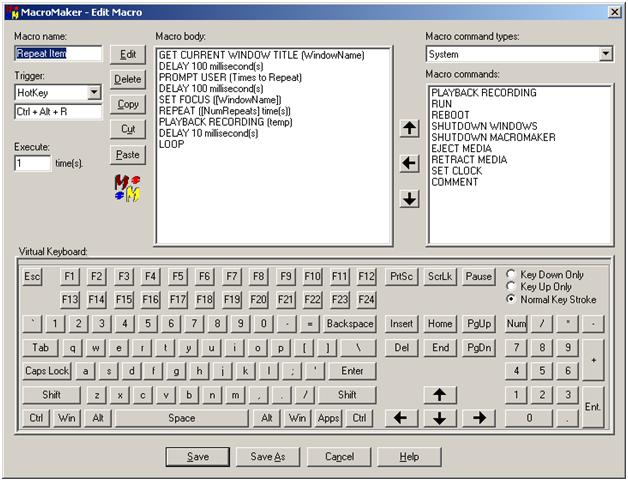
In the macro edit screen, the Prompt User “Times to Repeat” asks me how many times I want to repeat/playback a recording durring runtime and loads it into a variable named NumRepeats. I set the playback to run at 1500% the actual speed of the recording.
Subscribe to:
Posts (Atom)